

Help Center
Bills
Record what you owe vendors, route bills for approval, and apply payments — all tied to the job.
Updated June 21, 2026
Bills are amounts a vendor sends you for future payment. A bill stays Pending or Past Due until you pay it, then you mark it Paid and it closes. Tracking bills keeps your job costs and payables accurate.
Create a bill
- Go to Expenses → Expenses and click + New Transaction → Bill.
- Select the Vendor.
- Choose the Expense Account (required if syncing to QuickBooks).
- Optionally link the Purchase Order(s) to pull in their line items.
- Add the Bill Number, Bill Date, Payment Terms, and a payment date if needed.
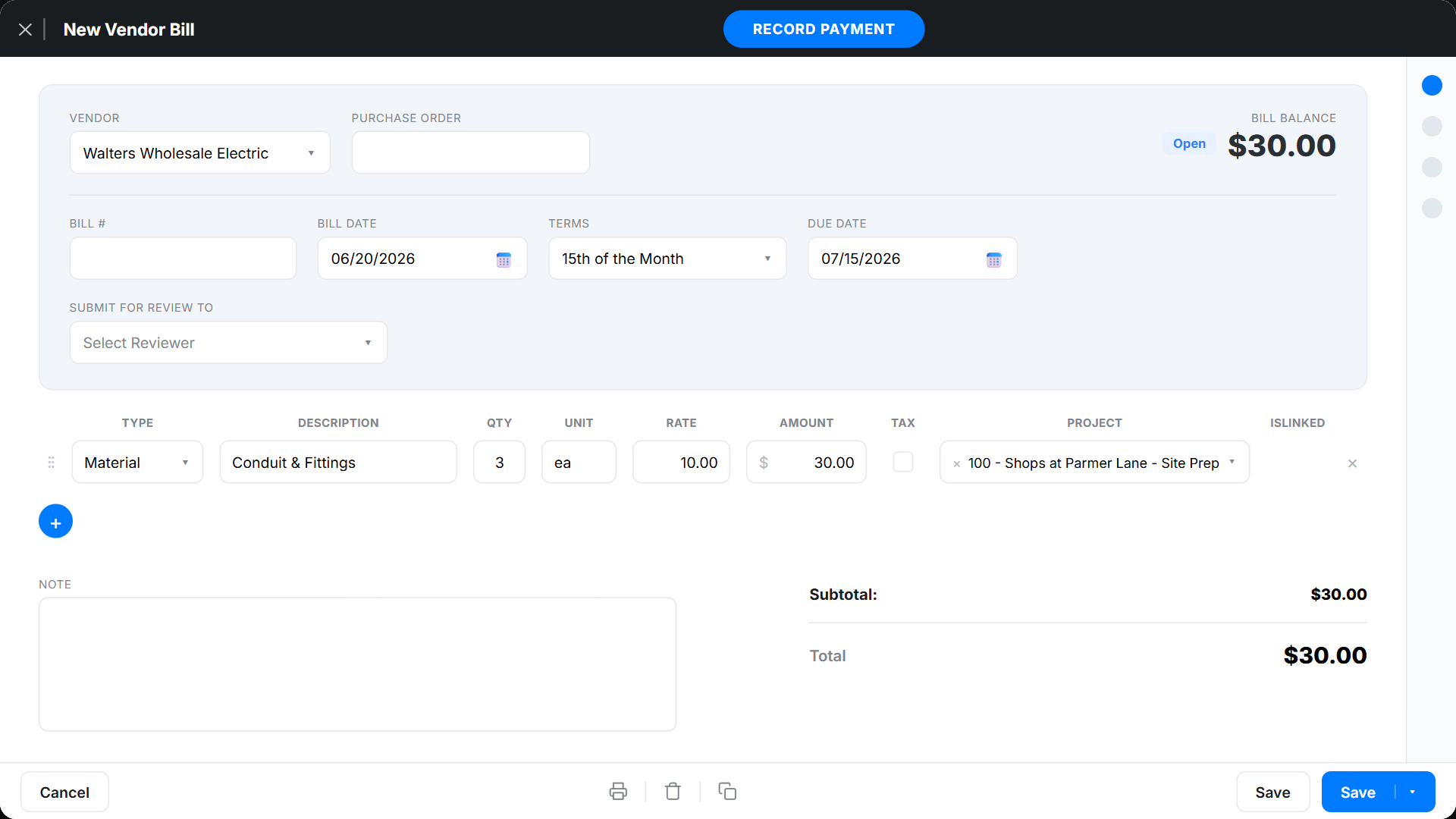
Enter bill items & route for review
- Click + Add for each line: pick the Expense Type, enter a description, quantity, and rate or amount, and choose the Project → budget item.
- Lines pulled from a PO show a link icon — click it to see the source purchase order.
- To route for approval, request a reviewer from the dropdown; the bill is flagged In Review until they click Approve.
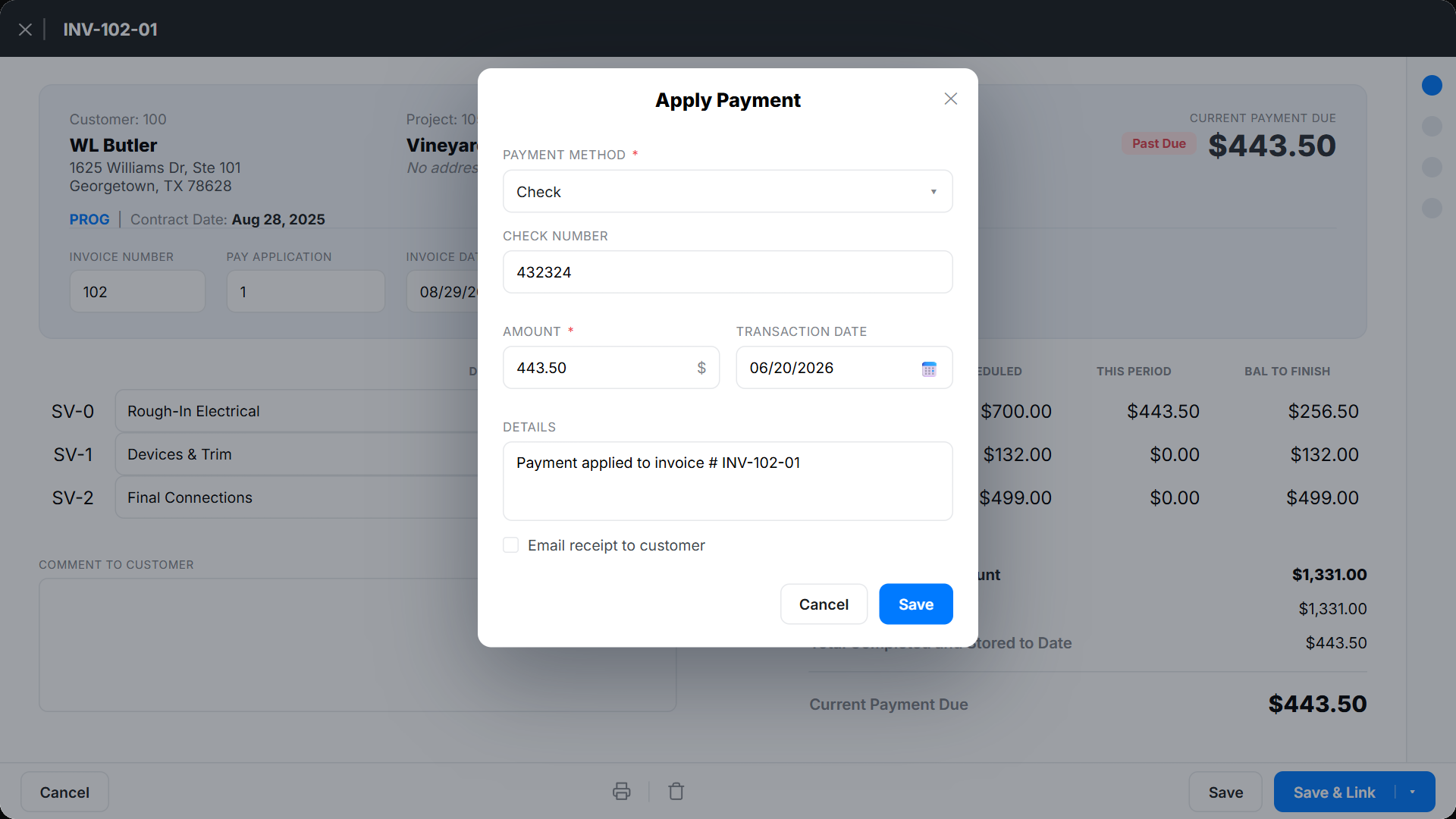
Apply a payment
- Open the bill and click Record Payment.
- Choose the payment method / account.
- Enter the amount, date, and reference number.
- Optionally email a receipt, then click Save.
If QuickBooks Online is connected, payments you record in QuickBooks reflect as paid in Werx automatically.
Bills FAQ
What's the difference between a bill and an expense?
A bill is money you owe a vendor for future payment (Pending until paid). An expense is already paid and is recorded as paid automatically.
Can someone approve bills before they're paid?
Yes. Use Submit for Review to route a bill to a reviewer, who approves it from the banner before payment.