

Help Center
Project budget
Set a budget per job and watch committed costs against it in real time, by cost type.
Updated June 21, 2026
Monitoring costs is key to a healthy project. The Budget tab lets you set a budget and track expenses for each item across the life of the job.
Create your budget
- In the project's Budget tab, click + Add to create a budget item.
- Name it (by phase, task, etc.).
- Enter amounts for Material, Labor, Equipment, Subcontractors, and Other.
- Click Save.
Any expense applied to the project without a budget item lands in the Uncategorized item, which you can re-categorize anytime.
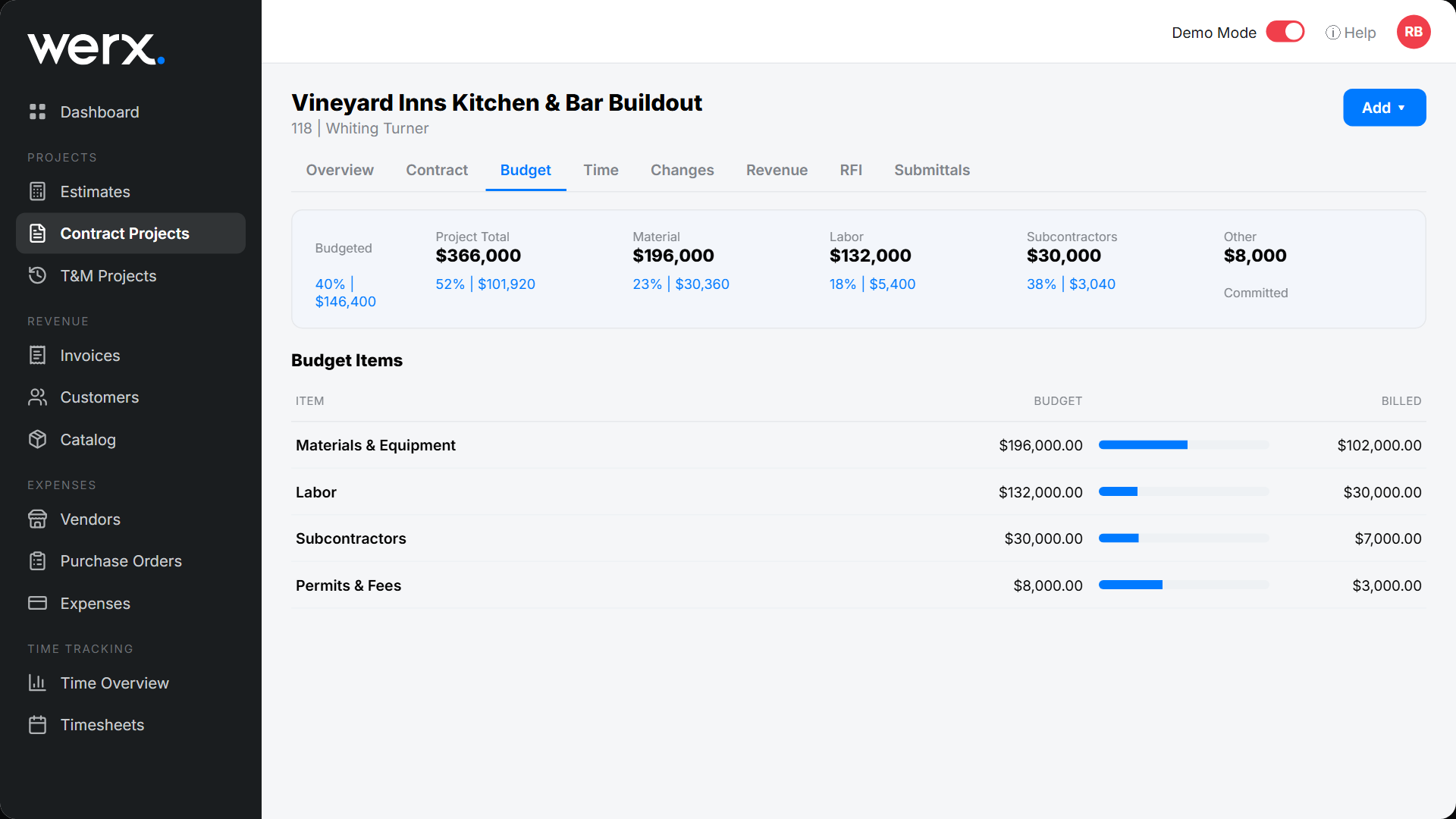
Track expenses against budget
Once your budget is set, apply each Purchase Order, Expense, and Bill line to a budget item, and Time Tracking users log time to the right item too. The Budget screen shows spend vs. budget per item — expand any item to see the breakdown by Material, Labor, Equipment, Subcontractors, and Other, down to individual transactions.
Tip: If field crews aren't sure which item to log time to, create a budget item named "Labor" or "Time" to catch it all; you can redistribute later.
Labor costs split into two parts: time tracked through Werx Time Tracking, and labor costs applied through expenses or bills.
Budget FAQ
What is the Uncategorized budget item?
Any cost applied to the project without a specific budget item lands here, including expenses imported from QuickBooks. Re-categorize them anytime.
How does labor reach the budget?
Time logged in Werx Time Tracking and any labor costs on expenses or bills both roll into the Labor cost type for the project.