

Help Center
Import from QuickBooks
Bring in the customers, vendors and items you already keep in QuickBooks Online, linked so they stay in sync.
Updated October 15, 2026
Once Werx is connected to QuickBooks Online, your existing customers, vendors and products and services do not need to be typed again. Each list has an import that reads the QuickBooks company, shows what it found, and creates the records you tick, linked to their QuickBooks counterparts. Do this before you create new records in Werx, so the two systems share one list.
- In the left navigation, click Customers. Open the menu next to Add Customer and choose Import from QuickBooks.
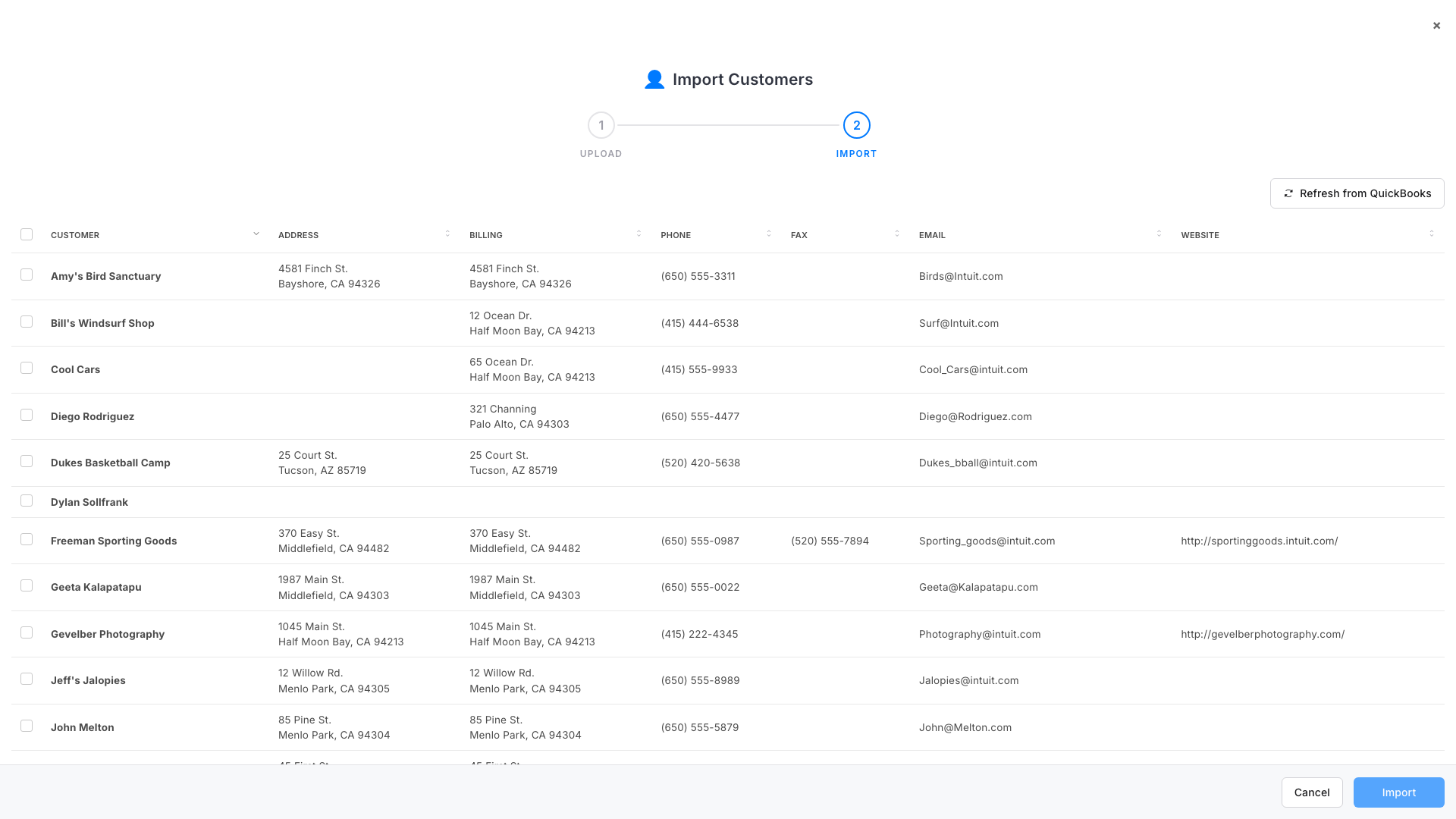
- Werx reads the customers in your QuickBooks company and lists them. Tick the ones to bring in, or tick the box in the header to select them all, then click Import.
- Each imported customer keeps its link to the QuickBooks record, so invoices and payments for it sync both ways. A row that cannot be imported says why. Refresh from QuickBooks pulls the list again after you add customers in QuickBooks.
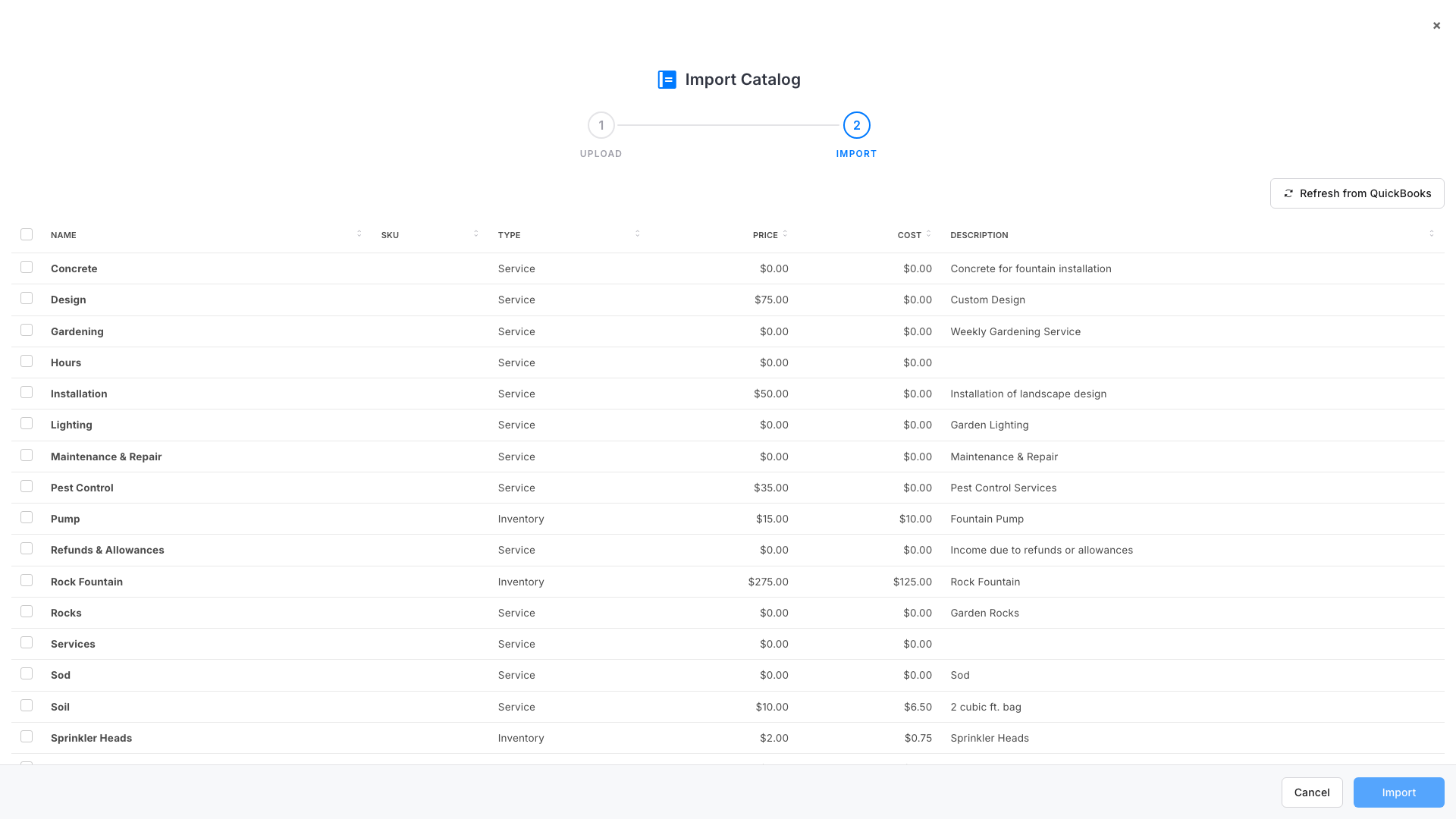
- Vendors and catalog items import the same way: Vendors > the menu next to Add Vendor > Import from QuickBooks, and Catalog > the menu next to Add Item > Import from QuickBooks.
Good to know
- Import before you create. A customer created in Werx and the same customer in QuickBooks are two records until one is imported over the other. Importing first avoids that.
- Linked records sync both ways. Imported customers and vendors carry their QuickBooks id, so invoices, payments, bills and expenses for them sync without a second step.
- Already imported rows are skipped. Werx will not create a customer, vendor or item twice from the same QuickBooks record.
- The setup wizard does the same thing. Right after you connect, the wizard walks these imports in order: catalog, customers, vendors, then defaults. This page is for doing them again later.
Import from QuickBooks FAQ
What if a customer exists in both Werx and QuickBooks?
Import the QuickBooks one, then merge or delete the duplicate in Werx. Records are matched by their QuickBooks id, not by name.
I added customers in QuickBooks after importing. How do I get them?
Open the import again and click Refresh from QuickBooks. Only the new ones will be unlinked and ready to import.
Can I import projects or invoices from QuickBooks?
No. Werx pushes invoices, payments, bills and expenses to QuickBooks; it pulls customers, vendors, items, accounts, classes and terms.
Does importing change anything in QuickBooks?
No. Importing only reads your QuickBooks company.