

Help Center
QuickBooks Catalog Defaults
Set default income and expense accounts for catalog items.
Updated June 21, 2026
QuickBooks Connect: Catalog Defaults
QuickBooks Online integration defaults ensure every data block (customers, vendors, invoices, bills, catalog, etc.) contains the data required by QuickBooks to sync properly. Without proper defaults, syncing errors can occur.
Note: After connecting your Werx and QuickBooks Online accounts and importing initial QuickBooks data, the first step is to "import your catalog items (Products & Services)."
Catalog Account Defaults automatically apply to new Product and Service items created in the main catalog section. These accounts can be changed while creating or editing catalog items.
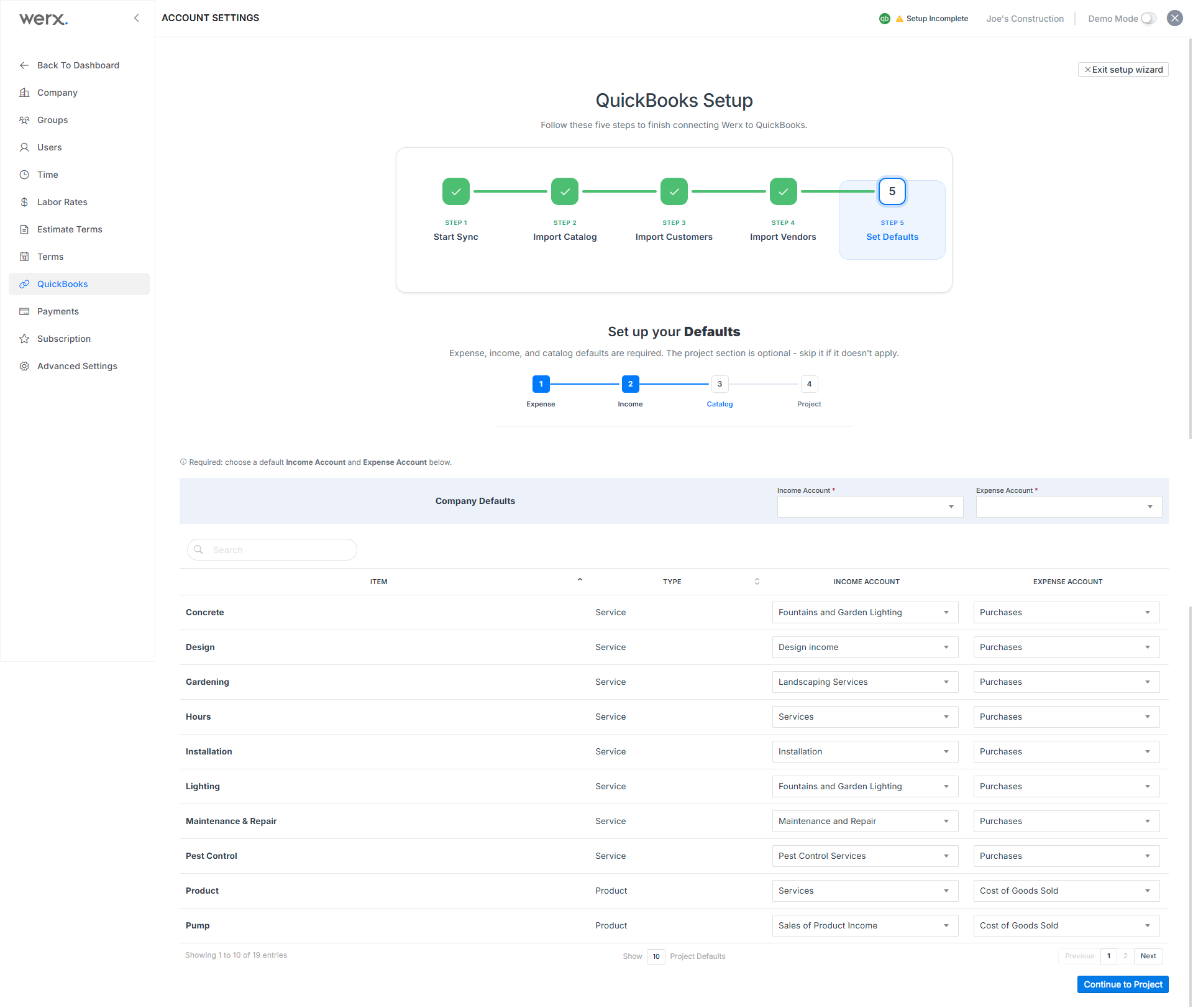
Set Catalog Default Accounts
- In the accounts settings section, select QuickBooks in the left navigation.
- Click Defaults > Catalog Defaults in the top tabs of the QuickBooks screen.
- Select default Income and Expense accounts from the dropdown fields.
Once Products and Services exist in your Werx Catalog, you can edit their individual account settings on this screen or in the main catalog section.