

Help Center
Your profile and password
Your name, contact details, badge colour and the password you sign in with.
Updated October 15, 2026
Your profile is the account you sign in with. It holds your name, the email Werx uses to sign you in and send you notifications, your mobile number, the badge colour behind your initials across Werx, and your password. Every user manages their own profile from the avatar menu. Administrators add and manage everyone else under Account Settings > Users.
- Click your avatar in the top right, then click View Profile.
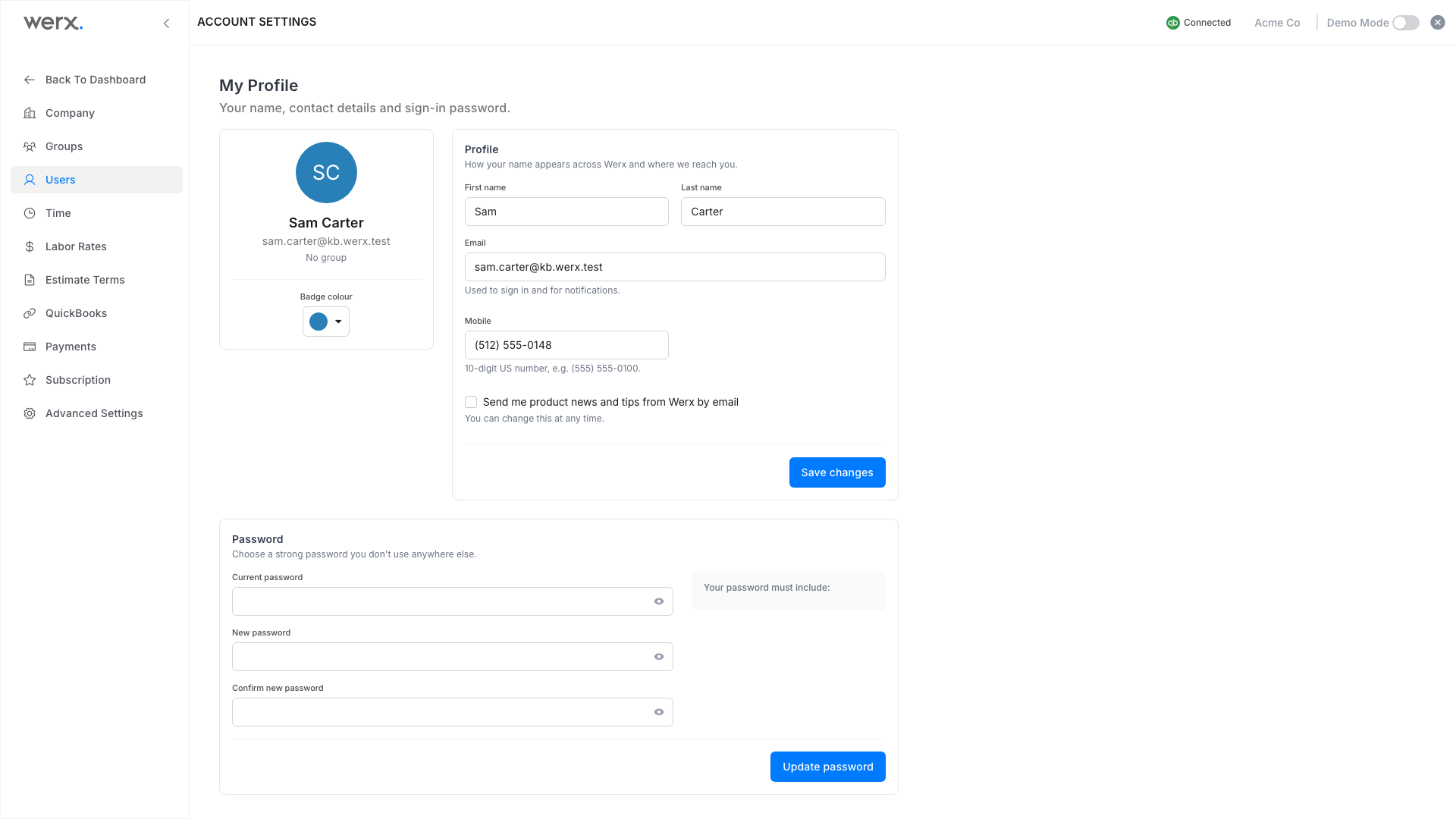
- Under Profile, edit your first and last name, email and mobile number, and pick a Badge colour on the left. Tick Send me product news and tips if you want them. Click Save changes.
- Under Password, type your current password, then a new password that meets the checklist, confirm it, and click Update password.
Good to know
- Badge colour. The colour sits behind your initials wherever Werx shows who did something. Pick one that is easy to tell apart from your teammates'.
- Product news. The Send me product news and tips box controls Werx marketing email only. Notifications about your projects and invoices are not affected.
- Password rules. The checklist next to the new password field ticks off each rule as you type, so you can see what is still missing before you click Update password.
- Changing your password from an old link. The old change-password address still works. It opens this page with the Password card in view.
Your profile FAQ
Can I change the email I sign in with?
Yes. Edit Email under Profile and click Save changes.
I forgot my password. Can I reset it here?
No. This page needs your current password. Use the reset link on the sign-in page instead.
Can I change another user's name or password?
Not from here. Administrators manage other users under Account Settings > Users.
What format does the mobile number need?
A 10-digit US number, for example (555) 555-0100.