

Werx Academy
How to Track Crew Time by Job, Phase & Cost Code
Turn raw crew hours into clean job-cost data with daily coding and weekly approvals.
Coding crew time to the right job, phase, and cost code turns hours into reliable job-cost data. It also gives you the backup you need to bill. The method is simple: pickers in the field, weekly approvals, and clean mapping to accounting. Do that and you cut errors, speed billing, and keep payroll accurate.
Why does coding time entries matter?
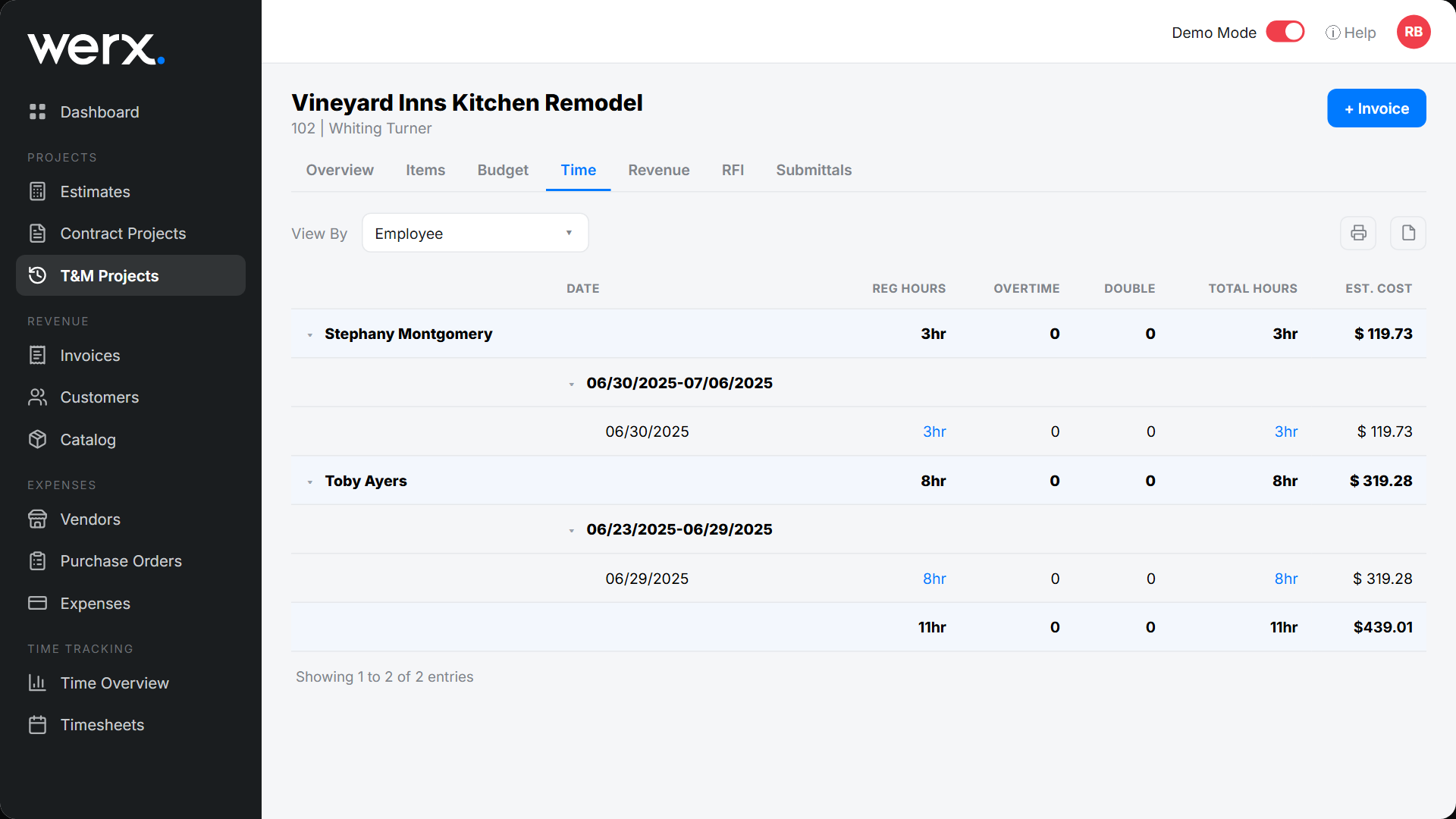
Labor is your most variable cost. When hours carry the right codes, the numbers line up. Budget vs. actual, WIP, and invoices all agree, which heads off profit fade and disputes.
- Accurate job costing by phase and trade
- Clean AIA and progress billing math tied to SOV lines
- Solid T&M billing backup with notes and photos
- Payroll readiness with no last-minute fixes
What standards keep coding consistent?

Make coding easy so crews do it every day. A few firm rules beat a long manual no one reads.
- Use one master cost-code list shared across jobs
- Require job, then phase, then cost code on every entry
- Set naming rules and retire near-duplicate codes
- Map codes to SOV items and QuickBooks accounts
What does a fast daily field workflow look like?
Keep the taps minimal. The goal is same-day entries with no guesswork.
- The worker picks job, phase, and code, then enters regular and OT hours
- A short note or photo covers unusual work or T&M proof
- Split time when moving between phases or jobs
- Submit daily, and the foreman reviews weekly before payroll
How do you prevent miscoding and missing data?
Design the system so the right choice is the easy one. People follow the path of least resistance.
- Pickers only, no free text, tied to active jobs and codes
- Required fields with inline validation
- Light-touch location capture for verification, not surveillance
- Saved favorites for common crews and tasks
How do approvals and audit trails keep numbers honest?
Short, regular checkpoints keep the data trustworthy. They also create a record you can defend.
- Supervisor approval every week, with PM review of exceptions
- Flag uncoded hours or unknown codes for fast correction
- Store change history and comments for audits
- Lock approved weeks to stop accidental edits
Which reports and KPIs should you watch?
Watch a few metrics to catch issues before they grow. Trends matter more than any single week.
- Coding error rate: percent of entries edited at approval
- On-time submission: entries logged daily, not weekly
- Uncoded hours: should trend toward zero
- Labor variance: budget vs. actual by phase and code
When should you add more code detail (and when to stop)?

Add detail only when it changes a decision. If the field cannot code it reliably, it is too granular. Roll those codes up.
Start simple on small jobs and add phases as scope grows. A kitchen remodel needs fewer codes than a ground-up build. Clean codes also feed real-time job costing and faster crew time review across multiple phases.
- The code drives a real budgeting or billing decision
- Crews can pick it without guessing
- It maps cleanly to your SOV
- It survives a quick audit
How does Werx make coding easy?
Contractor software like Werx guides crews to the right job, phase, and code. The Werx Field App captures notes and photos and syncs approved hours to billing and accounting.
- Mobile pickers for job, phase, and cost code
- Supervisor approvals and audit trail
- Attach T&M billing evidence and convert to invoices fast
- Clean sync to QuickBooks Online
Key takeaways
- Require job, phase, and cost code on every entry
- Daily logging plus weekly approvals means accurate job costs and payroll
- Pickers, required fields, and audits prevent miscoding
- Werx ties coded hours to billing and QuickBooks with no rekeying
Frequently Asked Questions
What if a worker does multiple tasks in a day?
Split the entry by phase and cost code. It is a few extra taps and gives precise job-cost and billing data.
How do we stop miscoding?
Use pickers tied to active jobs and codes, require approvals, and publish a one-page code guide. Retire near-duplicate codes.
How granular should codes be?
Use the least detail that still drives decisions. If the field cannot code to it reliably, roll it up.
Ready to grow your business?
Start your 14-day free trial today. No credit card required.
No credit card required · Free migration assistance · Cancel anytime