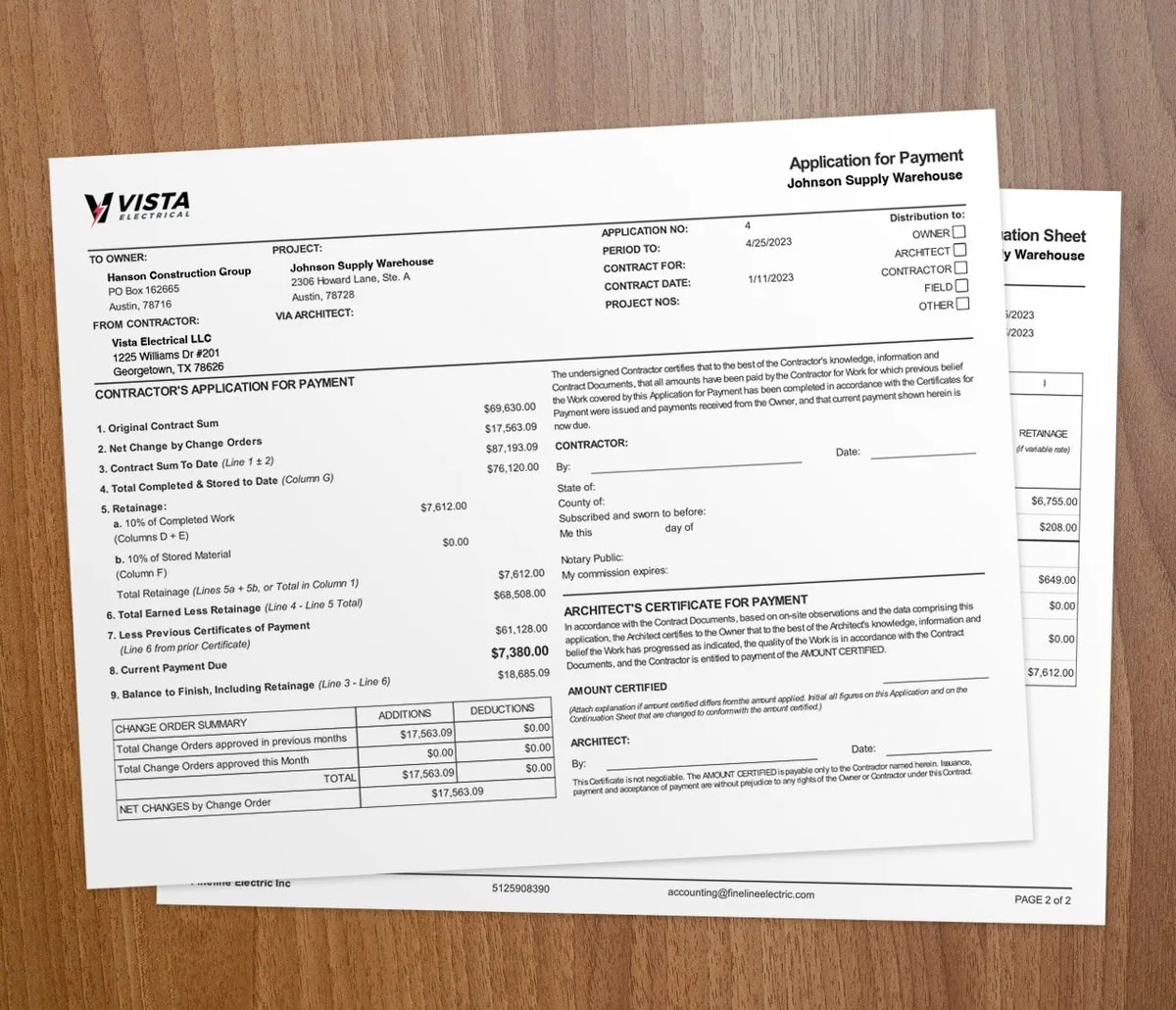

Setting up a project in Werx takes a few clear steps. You pick the project type, add details, set contract terms, assign roles, and turn on billing. Werx pulls from your estimate, so you do not retype the basics.
Contract projects vs. time and material projects
Werx lets you create two project types. Contract projects fit jobs with a fixed budget. You bill in stages based on percent complete.
Time and material projects are flexible. They fit jobs where cost depends on actual labor hours and materials used. Both types work for jobs big or small.
How do you set up project details?
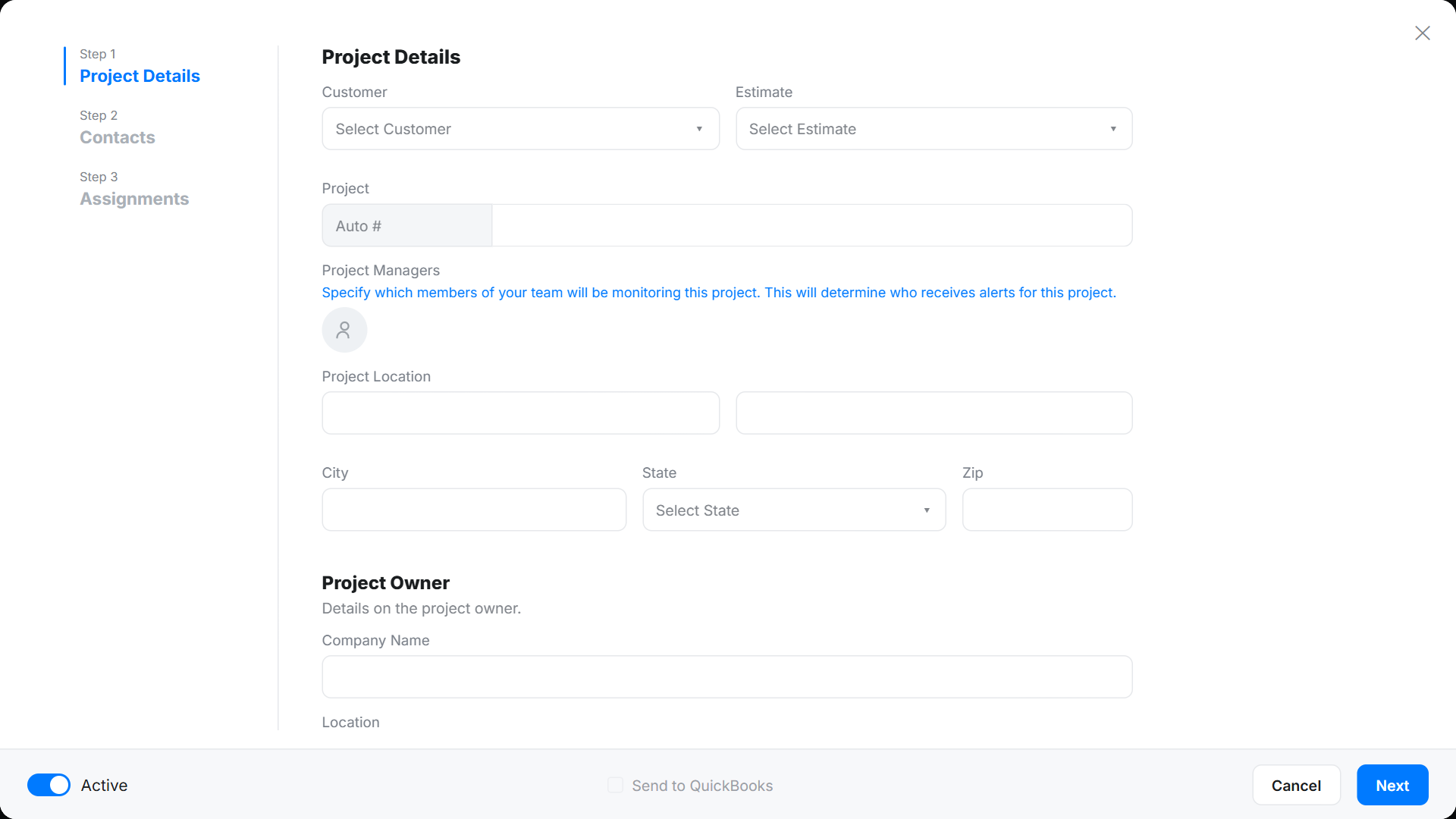
Start with a system that captures the key info up front. In Werx, the Project Details section holds that foundation. Go to the Projects tab and click Add Project.
Pick an existing customer from the dropdown, or add a new one. If you built an estimate first, select it to auto-fill much of the project. That saves time and cuts typos.
Next, enter the project name, number, and location. Add the owner's contact details. Assign a project manager so there is one clear point of accountability from start to finish.
Entering contract details
Contract details are the backbone of a project. Start with the customer's contract or purchase order number. This number is the project's unique ID and shows on all related documents.
Then pick an invoice style that fits the client. Options include Standard Progress or AIA-style billing. That makes it easy to match billing to client expectations.
Enter the contract date, start date, and estimated completion date. These dates keep your timeline accurate. They also keep subs and suppliers on the same page.
Assigning contacts and roles

Clear communication keeps a project on track. In the Contacts tab, link client reps and other stakeholders to the project. They get updates and access to the right documents.
Use the Assign feature to control project access. Grant access through tools like time tracking and the Werx field app. Assign specific users, groups, or the whole team based on the job's size.
Managing tax rates and QuickBooks integration
Tax rules can get complex. Werx lets you set project-specific tax rates inside the software. Those rates apply to change orders, invoices, and other documents, which keeps things consistent.
For contractors on QuickBooks Online, Werx syncs your customer and project data with one click. That saves time and removes duplicate entry. It also keeps your records current for payroll and reports. New to QuickBooks pain? See why contractors struggle with QuickBooks.
Editing projects with ease
Projects change, and Werx makes updates simple. Open the customer's project in the Contract Project list, click More, then Edit Project. From there, update timelines, contacts, or tax rates and save. Your documentation always reflects the latest details.
Which project type should you use?
Use a contract project when the budget is fixed and you bill by percent complete. This fits remodels, commercial builds, and most multi-phase jobs. It pairs well with real-time job costing so you watch margins as you bill.
Use a time and material project when scope is open and costs depend on hours and materials. This fits service work and change-heavy jobs. When in doubt, match the type to how you agreed to get paid. For the money basics, see our essential job costing tips.
Why contractors rely on Werx
Werx does more than set up projects. It runs project management end to end. By centralizing the details and automating busywork, Werx helps you save time and avoid errors.
From detailed estimates to real-time labor tracking, Werx keeps your projects under control. You stay focused on the work, not the paperwork.
Key takeaways
- Werx offers contract projects for fixed budgets and time and material projects for flexible work.
- An estimate auto-fills much of a new project, so you do not retype the basics.
- Set the invoice style, contract dates, and project roles up front.
- Project-specific tax rates apply to change orders and invoices automatically.
- QuickBooks Online sync keeps customer and project data current with one click.