

Help Center
AIA-style billing, start to finish
Create a contract project, build the schedule of values, and send your first pay application in the AIA-style format.
Updated June 21, 2026
What AIA-style billing is in Werx
AIA-style billing is progress billing where the invoice your client receives follows the G702/G703 style layout. The workflow is the same as standard progress billing: you set a fixed contract amount, list it as a schedule of values, then bill each period by the percentage complete, with retainage held back. The difference is the invoice style your client sees.
You choose that style when you create the project, with the Invoice Style dropdown. The three steps below take you from a new project to your first pay application.
Before you start
A contract project bills a fixed amount in stages, so you need the contract total and its line items. If you already sent an estimate, you can build the project from it and the lines fill in for you.
Step 1: Create the contract project
Start a contract project and pick the AIA billing invoice style, so every pay application prints in the G702/G703 style format.
- Go to Projects then Contract Projects and click Add Project.
- Select the customer, or add a new one. To bill from an estimate, select it to pull in the line items.
- Enter the Project Number, Project Name, and Project Manager.
- In Contract Details, set the Invoice Style dropdown to AIA Billing. This is what makes the project AIA-style.
- Enter the contract and start dates, then Save.
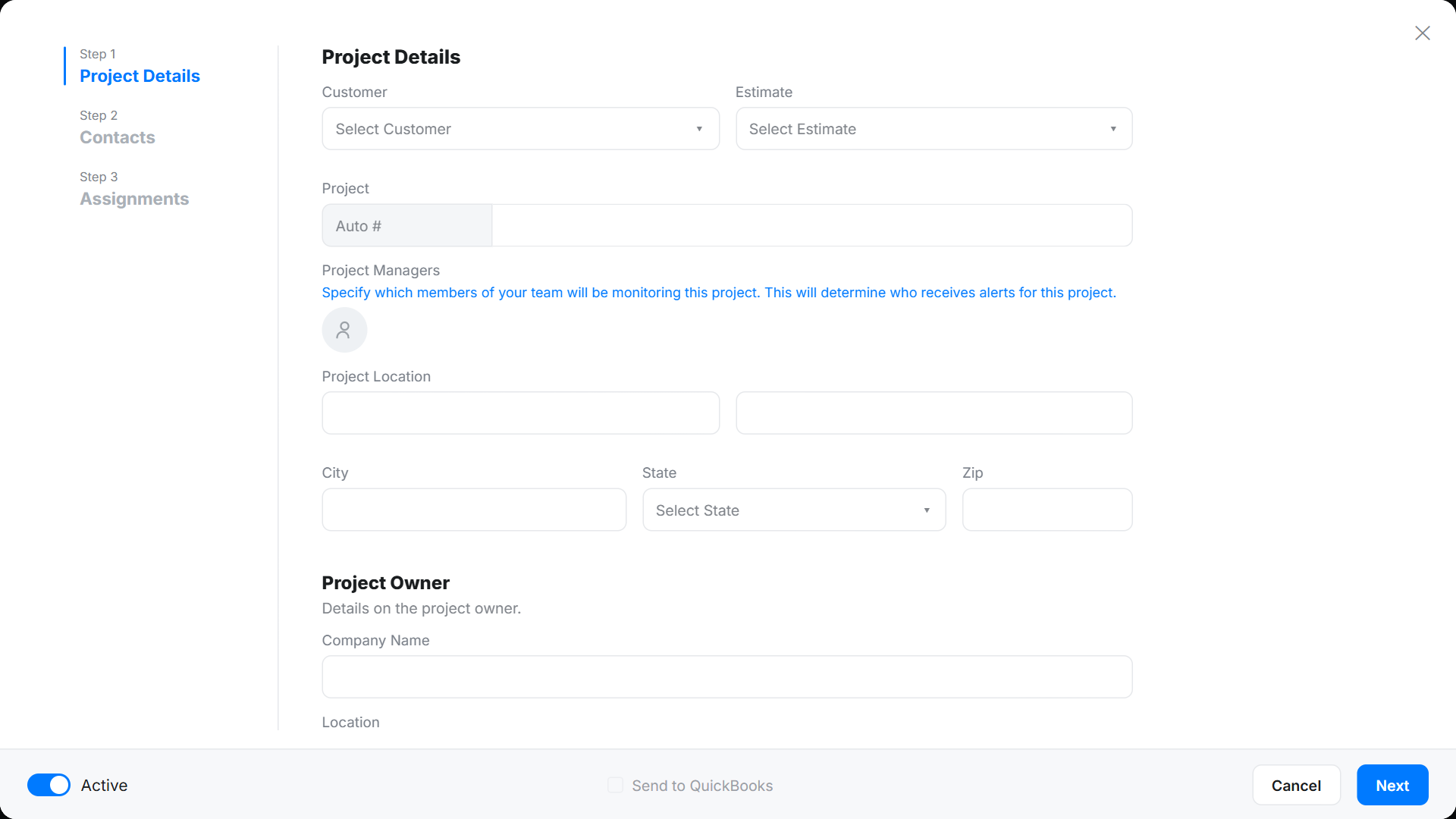
For every field on the setup screen, see Create a Contract Project.
Step 2: Build the schedule of values
The schedule of values is the itemized breakdown of the contract. Each line is billed by percentage complete on every pay application.
- Open the project and go to the Contract tab.
- In the Schedule of Values table, click Add +.
- Type the item name. Matching catalog items appear, or enter a custom item.
- Enter the total amount for the item and Save.
- Repeat for each line. Drag the handles on the left to reorder.
You can only edit the schedule of values before the first pay application. After that it locks, and contract changes go through change orders. Full detail: Contract Setup.
Step 3: Create your first pay application
Once the schedule of values is complete, create the first pay application. This is the invoice your client receives in the AIA-style format.
- In the contract project, click + Add To Project and select Add Pay Application.
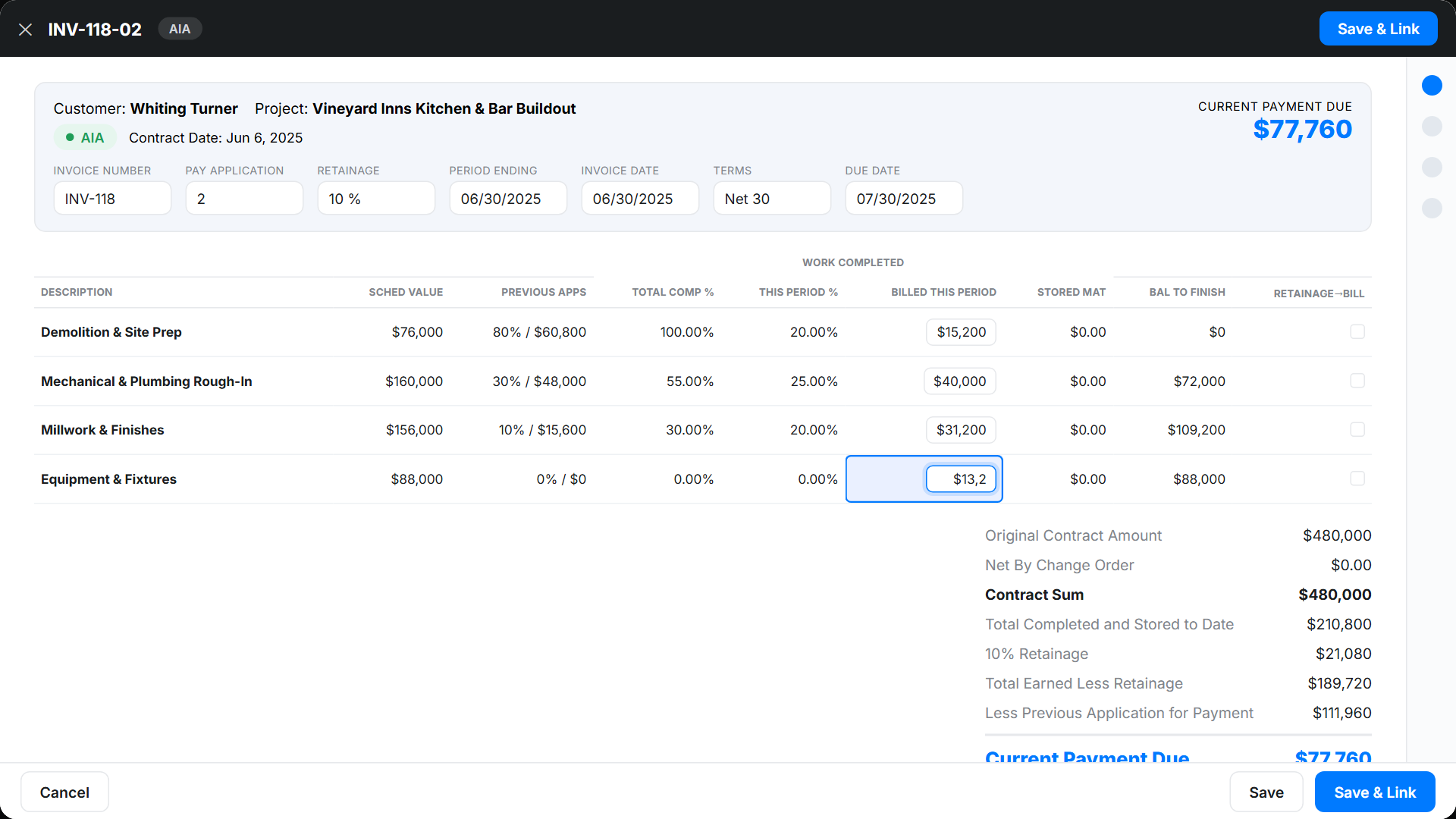
- Set the invoice number (or use auto-numbering), the period ending date, the invoice date, and payment terms.
- For each schedule of values line, enter the new total completion percentage. Werx bills the difference from previous applications.
- Enter any Stored Material, and check Bill on retainage when you are ready to bill it.
- Click Save & Send to email the invoice, or Save & Link to copy a portal link.
Retainage and stored materials
Retainage holds back a set percentage of each pay application until the job is complete. Stored materials let you bill for materials delivered to the site but not yet installed. Both are entered on each pay application. For the full breakdown of every column, see Create Pay Applications (Progress Bill).
What your client receives
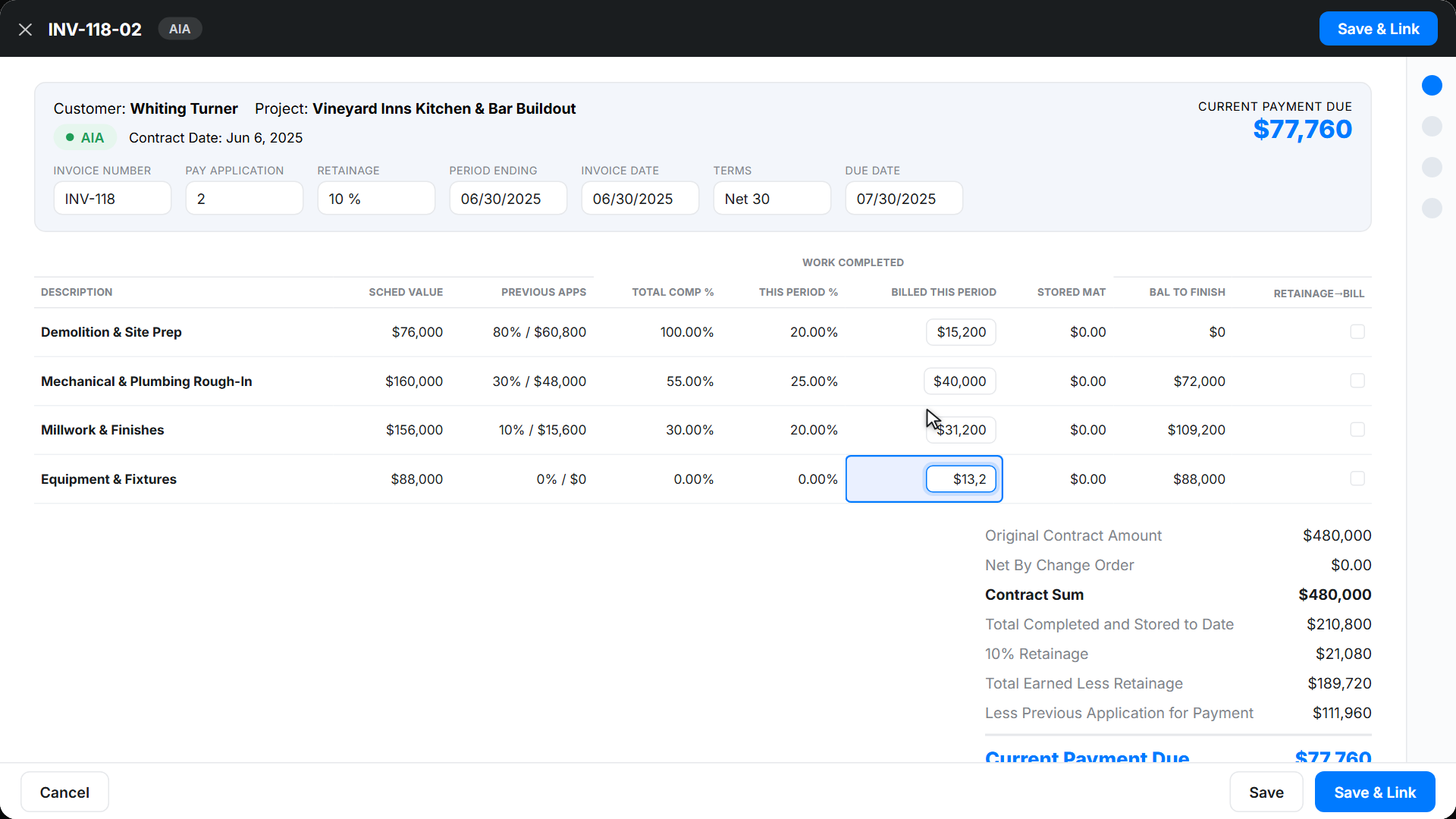
Your client gets the invoice in the AIA-style layout you selected and can pay online from a branded portal. See What Your Customer Sees.
AIA billing FAQ
What is the difference between AIA billing and standard progress billing in Werx?
Both bill by percentage complete against a schedule of values. AIA billing prints the invoice in the AIA-style G702/G703 layout. You pick the format with the Invoice Style dropdown when you set up the project.
Does Werx create official AIA G702 and G703 documents?
Werx produces invoices in an AIA-style layout based on the G702/G703 format that your client receives and can pay online.
Can I switch a project to AIA billing after it is created?
Change the Invoice Style on the project before the first pay application is created. After pay applications exist, you edit them by removing the later ones first.
How do I bill change orders?
Approved change orders are added to the contract and billed by completion percentage, the same as schedule of values items.